Web guides
Web accessibility
Web accessibility is good for all users and a necessity for some. Learn how to make sure your web pages, images, videos and files meet web accessibility requirements, including ensuring that screen readers can read the content.
Never use text on an image, the screen reader cannot read it.
Make sure to give the image a meaningful file name when uploading to the media library and to compress the image so that it doesn't take up more space than necessary and slow down our site.
-
Images must have ALT texts
-
Images in motion
-
The image should be clear (contrast)
Read more about SDU's visual style and our guidelines for the use of images
In general, avoid PDF files if you can; they are difficult to make accessible and don't work very well on small screens.
Create PDFs for regular web pages as much as possible. Agendas, minutes, guides and the like can easily be web pages.
Exceptions
PDFs published before 23 September 2018 are exempt from web accessibility requirements unless they are necessary for administrative processes. But consider whether such old PDFs are even relevant to have on your site.
We don't have to comply with accessibility requirements if the cost of compliance is disproportionate to the estimated benefits for people with disabilities.
Sitecore's Real Text Editor helps us to make the website accessible and easy to navigate - for users with and without disabilities.
Plain body text should always have Normal formatting, which is also the default setting when you open Sitecore's text editor.
-
Use headings
Heading styles
The headline styles in Sitecore not only ensure that headlines look right and fit with SDU's design guide, but they also ensure that users with screen readers can get an overview of the page and content.
Use headings in the correct number sequence, i.e. from Heading 2 to Heading 3 to Heading 4. Only go up one number at a time. You can create multiple sections with the same typography (e.g. Heading 2) if the sections are on the same level.
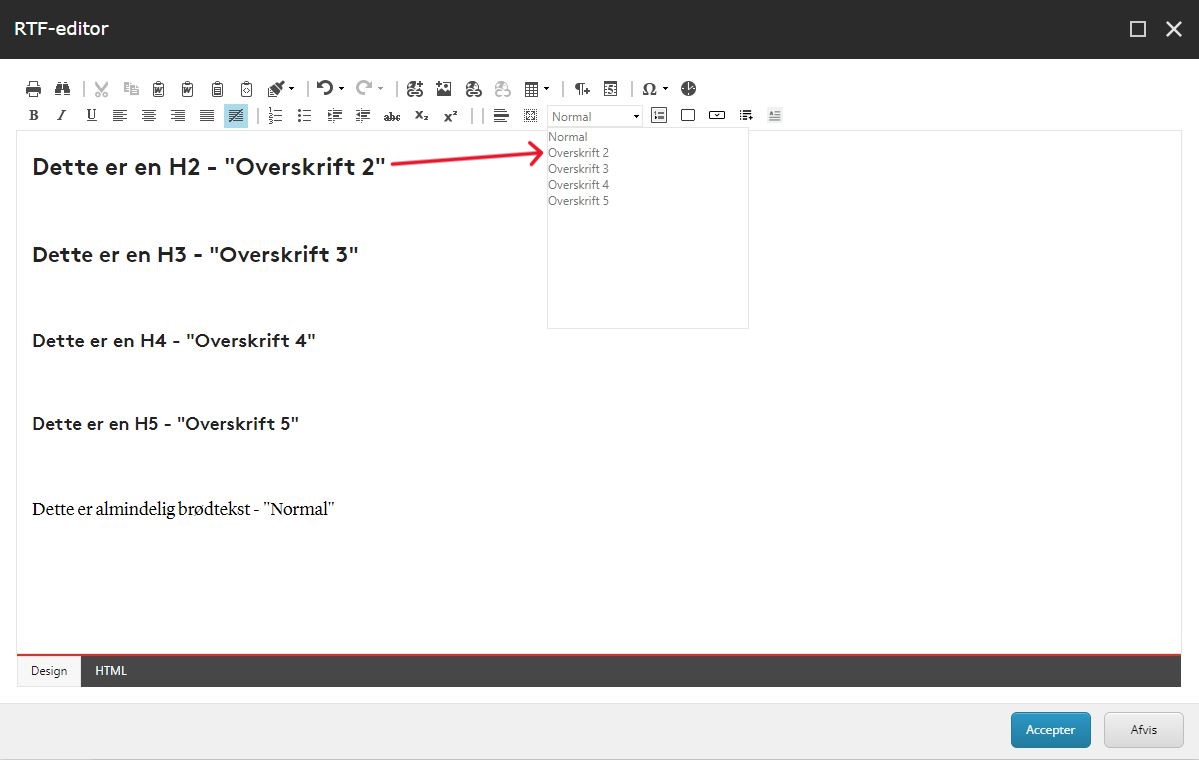
The page title is level 1, therefore Heading 1 cannot be selected.
Using the heading styles also helps search engines and AI to understand the content on your page, so you get better rankings in search results.
Note: In foldouts and accordions, start with heading 4 as they are an element on the page and should be seen as part of the overall text and not as independent elements.
Headings with meaning
Make sure to write meaningful and clear headings; for example, write "Collaboration with the Department of Complicated Science" rather than "Collaboration" or "Collaboration with the department".
Avoid generic headlines like "More information" or "Good to know". Instead, create a heading that specifically describes the topic or purpose of the page/section and what the user can get information about, such as "How to apply for an internship abroad".
-
Create good links
-
Bullet points
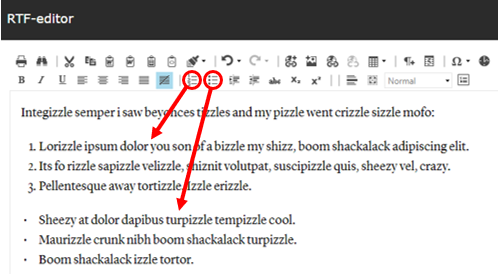
Do not create bullet points manually using dashes, but use the text editing feature in Sitecore that can create lists with either bullets or numbers.
Avoid tables on web pages as much as possible. Tables are difficult to make accessible and don't work well on small screens.
Do not copy tables as images, the screen reader can't read them.
If you still think a table is the best solution, make it as simple as possible, as screen readers can best handle simple tables.
Remember to use row and column headings and not just bold headings. When a screen reader reads a table, it reads the row and column headings out loud first before reading the content, and if there are no headings on the table, the data in the field will likely not make sense to the user because they won't get the context.
Key information for understanding the video should be available in both audio and text.
This means that all videos with speech should have subtitles, and people in the video should be presented verbally, not just in text.
Videos are also welcome to be audio-described. An audio-described video has a separate audio track where a narrator describes what is happening on the picture side of a video. The voice explains the who, where and what - everything that is not in the dialogue. It could be a smiling look between two people, a drone in the air or a beautiful sunset. That way you can follow the video even if you can't see the images.
Don't use auto-play on video and make sure you can pause, stop and remove audio on a video.
Learn more about producing video
What is web accessibility?
Web accessibility means that our websites can be used by everyone - including visitors who are visually, hearing or motorically impaired or who are colour blind or dyslexic. For a website to be considered accessible, it must be optimised to be used by various tools, such as screen readers or eye trackers.
As a web editor at SDU, it is your responsibility to ensure that your pages on sdu.dk, MitSDU and SDUnet are accessible. This also applies to images, videos and files in the media library.
Why do we have to comply?
It is a legal requirement that we must comply with the Web Accessibility Act.
Read the Danish Web Accessibility Act (in Danish)
SDU Communication - Web makes sure that SDU's accessibility statement is completed and available in the footer of our pages.
Read more at the Danish Agency for Digital Government
Do you have any questions?
If you have any technical questions, or questions about setup, language etc. please write to the web coordinator at your faculty or SDU Communication - Web. Remember to include the URL and screenshot of the page you need help with.