Register your working hours and absences - for technical/administrative staff with flexitime
Recording working hours is an essential part of a healthy and responsible work environment at SDU. Time registration helps ensure your rights, your well-being, and that working hours comply with the applicable regulations. Time registration applies to you if you are covered by SDU’s flexitime agreement.
Here you can see how to correctly register your working hours:
You record your check-in and check-out times on all working days. Check-in time is when you arrive at/start work. Check-out time is when you leave the workplace/finish the day's work.
-
Click on the pencil icon next to the desired date to register an arrival time.
Please note that it is not possible to make registrations for future times (not even on the same day).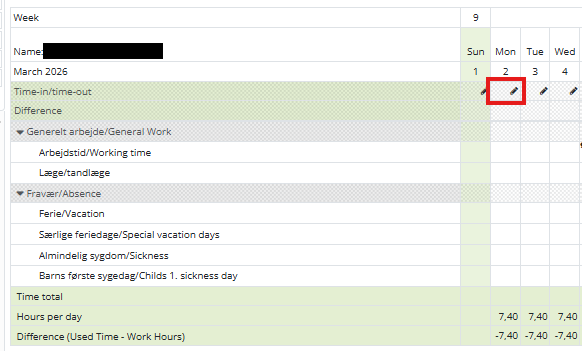
Enter the arrival time manually or click on “Set time” to select the current time.
The time must be entered using a colon (HH:MM)
Finish by clicking “Save and close”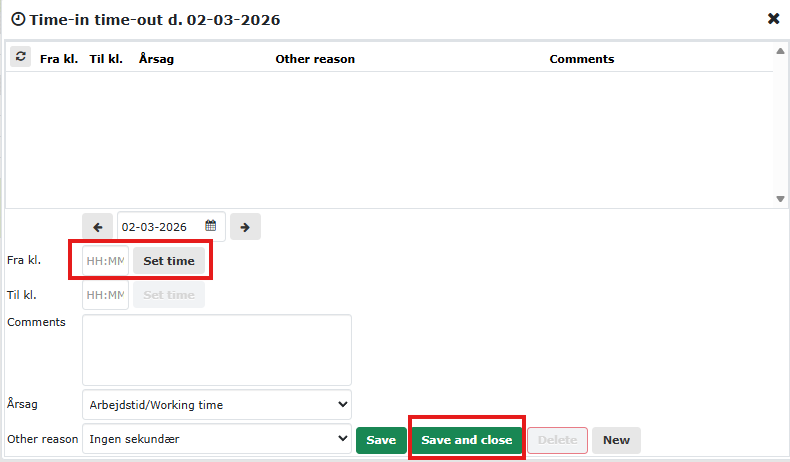
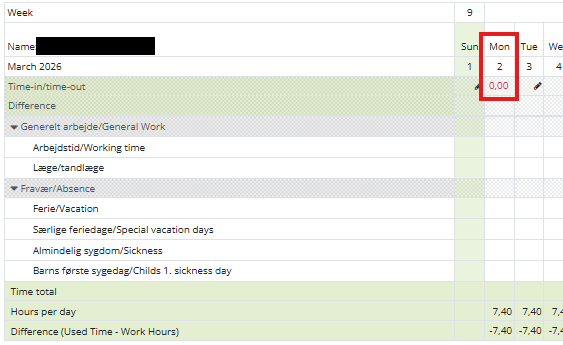
The arrival time is now registered, and the timesheet will display 0.00 in red numbers
-
Click on the red numbers on the timesheet when you finish work
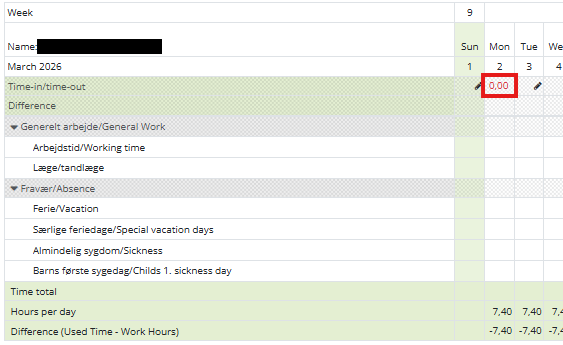
- Click on the line with the arrival time at the top of the pop-up box
- Then insert the departure time by either typing it manually or pressing "Set time" to select the current time
- Adding a comment is optional
- Finish by clicking "Save and close"
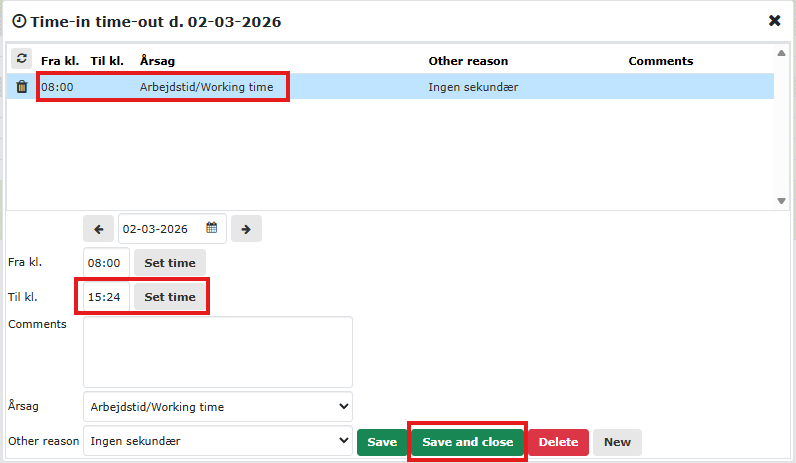
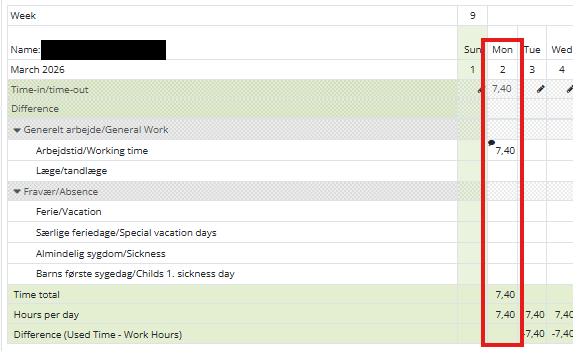
The registration is now complete, and the system automatically logs the hours under the line "Working time" while "Total time consumption" is updated.
-
Click on the arrival/departure time for the desired date
Click on the line with the arrival and departure time at the top of the pop-up box.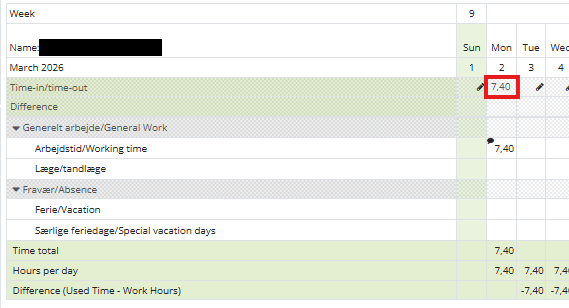
Then make the desired corrections
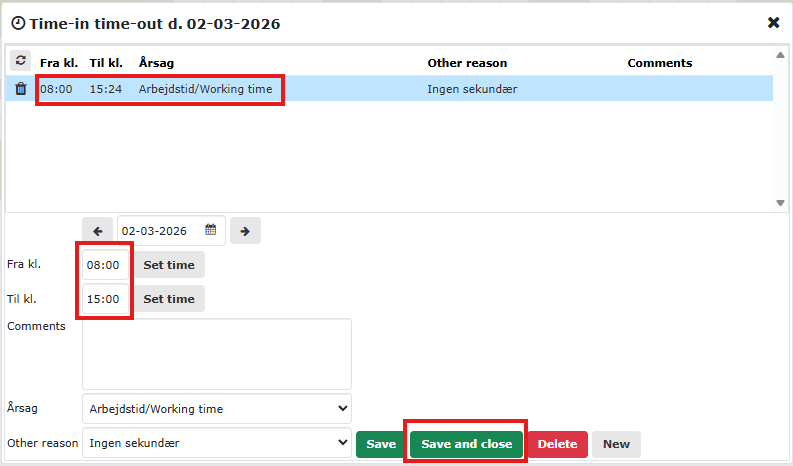
Finish by clicking “Save and Close”
The corrections are now completed, and the timesheet will be automatically updated.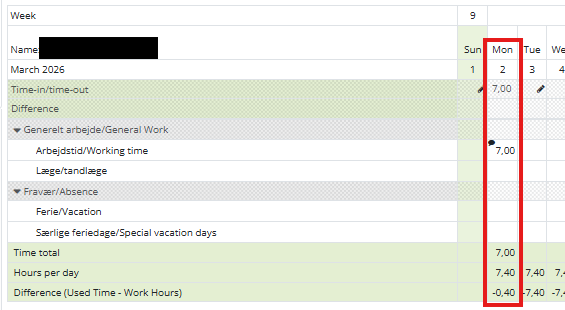
-
Find Project Activity
If you are associated to a project, you will be able to find the project activities here, at the top of your timesheet.

Afterwards, a pop-up window will appear with all the project activities you have been associated with by your project controller.
You add the activities to your timesheet by ticking the ones you wish to see and then closing the pop-up window again.
If you are missing a project or activity, please contact your project controller, who can help you further.Distribute project hours
When your project activity appears on the timesheet, you can distribute the hours based on your clock-in and clock-out times by editing the number of hours under Working Time and moving them down to the external project.
Example: The clock-in and clock-out hours entered are automatically allocated to Working Time.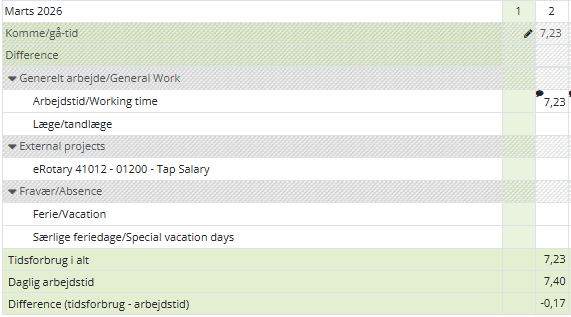
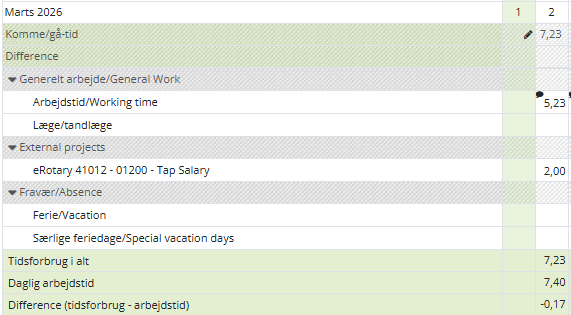
However, by overwriting the 7.23 with 5.23 and then entering 2 hours on the line with the project activity, the time spent remains the same.
For some projects, it is important to enter a description of the daily time usage. This is done by placing the cursor in the hours field for the activity and writing the comment on the left-hand side: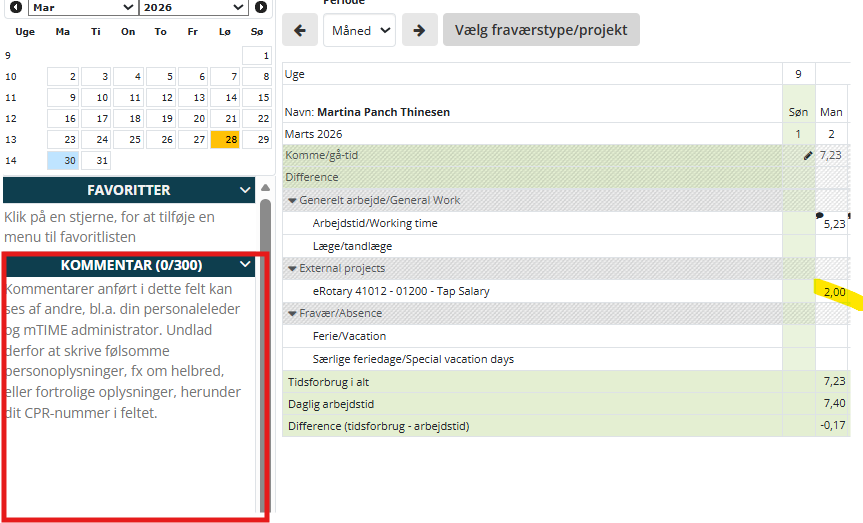
The Difference line shows how many hours/hundredths are still missing if you forget to distribute them, and the timesheet cannot be approved if there is a value in this line..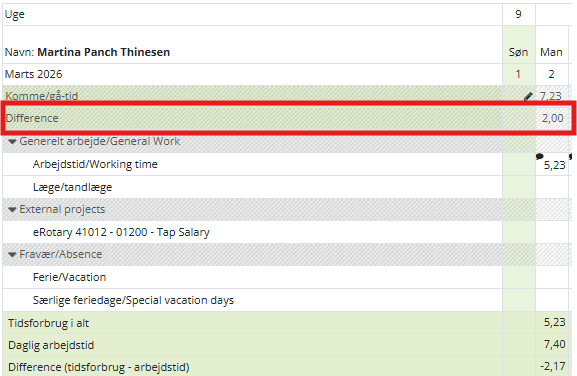
-
Click on check-in/check-out time for the desired date
Click on the line with check-in and check-out time at the top of the pop-up box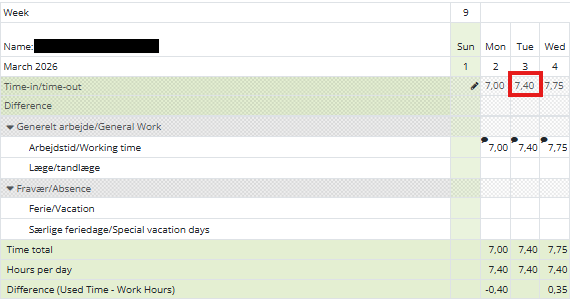
Click on “Delete” and then on “Yes” in the new pop-up
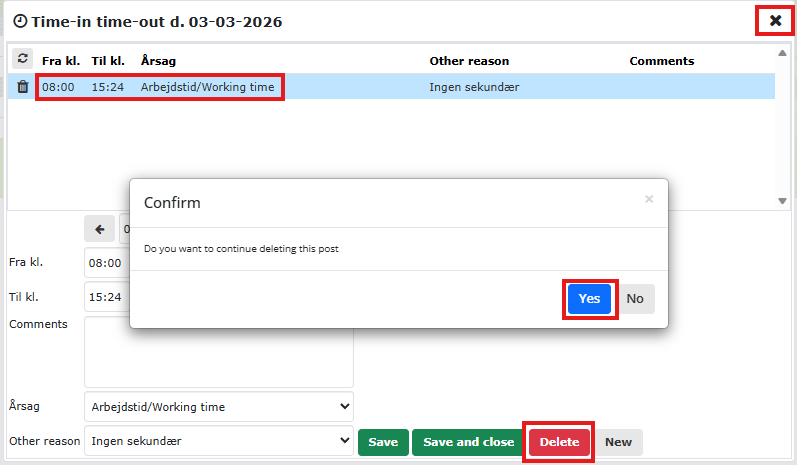
Then click on the cross in the top right corner
The changes are now completed, and the timesheet will be updated automatically.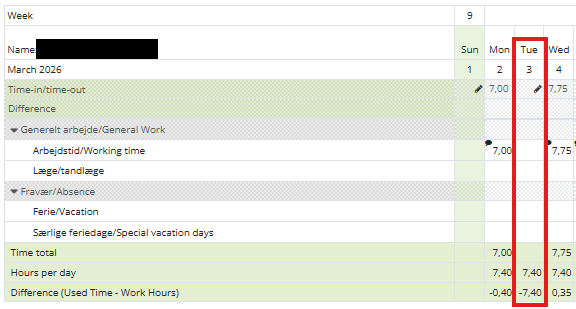
You must personally register absences related to illness, child sickness, care days, senior days, etc.
Holidays are automatically registered in mTIME. All other absences must be registered by you.
-
All other absences (illness, child’s sickness – sent home day, child sick, senior days, care days, etc.) must be registered manually in mTIME.
- Click on the pencil to register hours corresponding to your standard time
- Enter the from and to time
- Select Absence Reason
- Optionally, write a comment
- Finish with "Save and close"
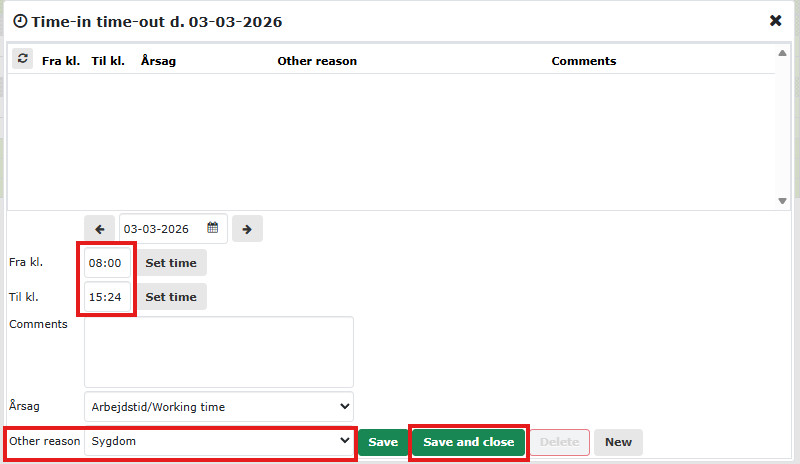
The registration is now complete, and the system automatically logs hours under the selected absence reason.
Note! It is not possible to register more than the standard time on days with absence.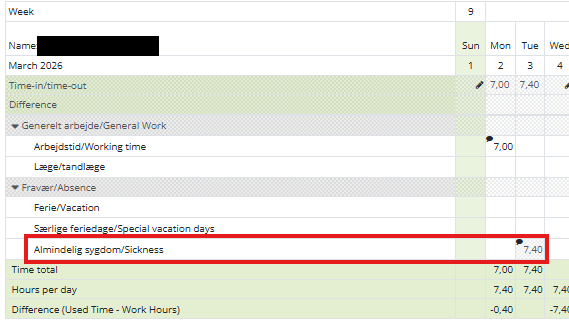
-
- Click on the pencil icon to make the registrations
- Enter the start and end time for the working hours
- Click "Save"
- Enter the start and end time for the absence and select the relevant absence reason
- Optionally, write a comment
- Finish with "Save and close"
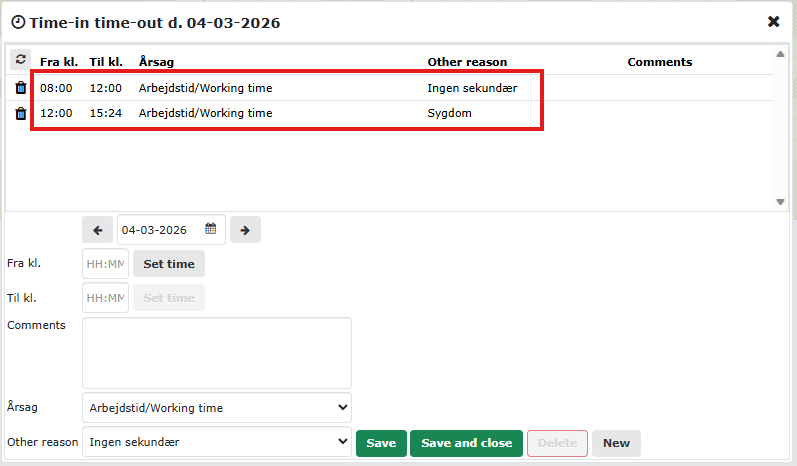
The registration is now complete, and the system automatically logs hours under the line "Working time" as well as the selected absence reason.
Note! It is not possible to register more than the standard hours on days with absences.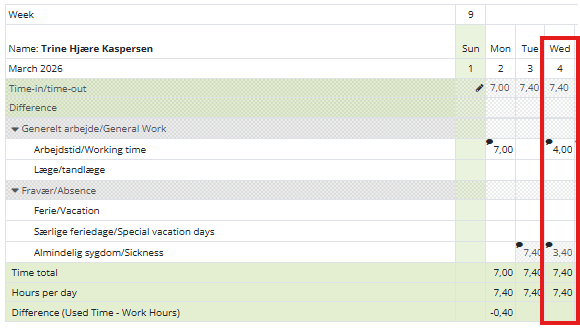
-
- Click on the pencil icon to make the registrations
- Enter the start and end time for the working hours
- Click on “Save”
- Enter the start and end time for the visit to the doctor/dentist and select the reason “Læge/tandlæge (Doctor/Dentist)”
- Optionally, write a comment
- Click on “Save”
- Enter the start and end time for the working hours
- Finish with “Save and close”
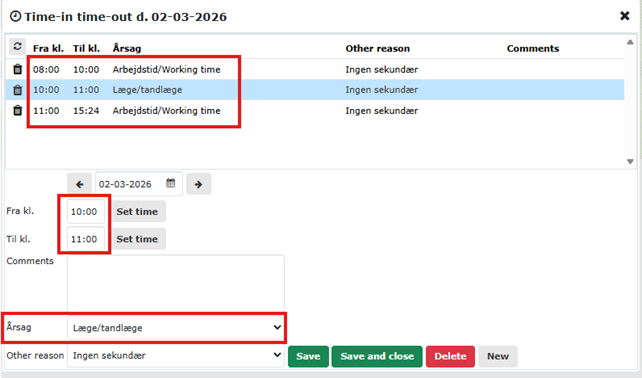
The entries do not need to be made all at once but can be done in several steps throughout the day.
With this type of registration, it is possible to register more than your daily norm and thereby accrue flex time. If the doctor/dentist (Læge/tandlæge) time is at the end of the day, flex time cannot be accrued.
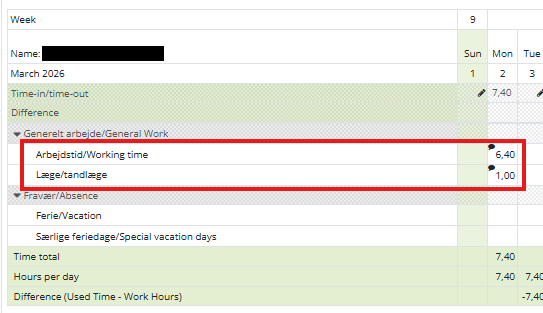
Important information about holidays
Your planned holidays, special holiday days, and holiday cards are automatically transferred from HCM to mTIME. If you wish to change your holiday, you must do so in HCM (mTIME updates approximately every 4 hours, so changes may be slightly delayed).
If there is a discrepancy between mTIME and HCM: First, check the information in HCM, and contact your local absence coordinator if something is incorrect.
How to register flex (time off, hours and half days):
You should refrain from registering hours on the given day/in the given time period. The hours will then automatically be deducted from your flex balance.
Full flex day
When taking a full flex day, you must select the absence reason “Fleksfri (hel dag) = Flex (full day)” and register arrival/departure times that match your daily norm.
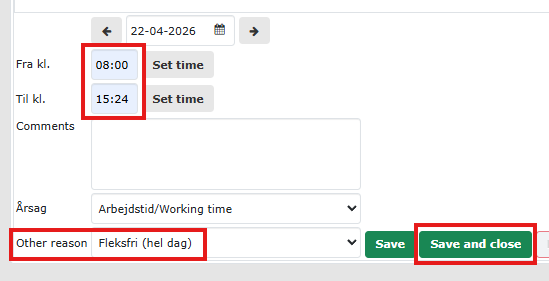
Flex balance per day
To check your daily flex balance, use the calendar on the left side. Select the date you want to view the flex balance for. You can see the flex balance right below your name.
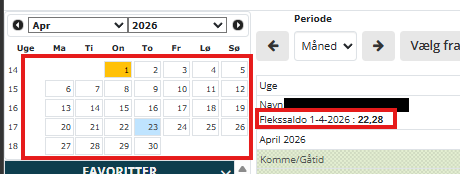
Check your flex balance per month:
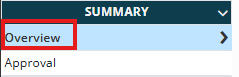
Check your flex balance by going to the tab "Overview" under "Statement" on the left side.
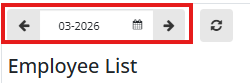
At the top of the page, you can ensure that you are in the desired month
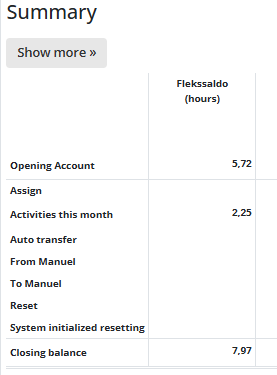
At the bottom of the page, you can see an overview of your flex balance:
- Starting balance: the balance at the start of the month
- Allocate: function for allocating hours (can only be filled out by admin)
- Ongoing: flex earned during the month
- Ending balance: the balance at the end of the month
- Note! The timesheet must be approved before the balance is transferred to the next month
You must approve your timesheet no later than the fifth of each month.
-
Review your timesheet to ensure everything is correct:
- Go to the tab “Overview” under “Statement” on the left side:
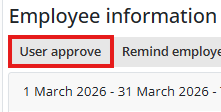
- Check that your hours are correct and then click on “User approval”:
- It is optional to write a comment.
Click “Ok” to proceed with the approval.
The timesheet is now approved and can no longer be edited.
Your manager does not need to approve your timesheet.
Note! You must approve your timesheets in chronological order.
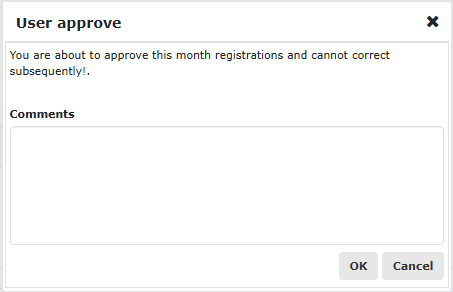
Reopening a timesheet:
If you need to reopen a timesheet (to correct any errors), contact mTIME support via email: mtime-support@sdu.dk.
- Go to the tab “Overview” under “Statement” on the left side:
-
The approval process is the same, there is simply an additional step: your Personnel Manager (P-Leder/P-Manager) must also approve your timesheet in order for your project hours to be used in the reporting.
Therefore, if you have recorded hours on an external project, you must ensure that your Personnel Manager (P-Leder/P-Manager) is listed here: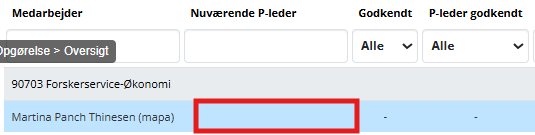
This can be handled by your project controller if a PLeder/P-Manager is missing.Reopening the timesheet:
If you need to reopen a timesheet (to correct any errors), contact mTIME support via email: mtime-support@sdu.dk.
-
Timesheet (referred to as schedule in the menu on the left)
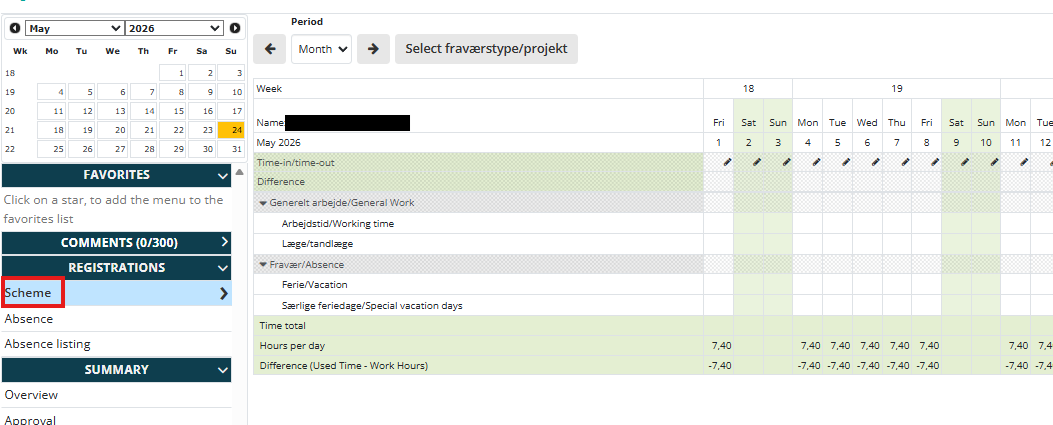
Timesheet and calendar
You can switch between months (and years) in the calendar on the left side or by using the arrows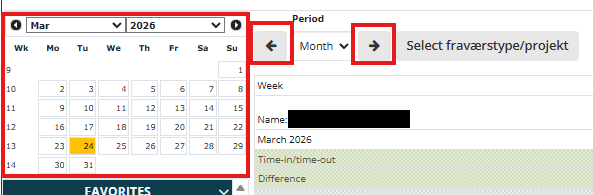
Adding a comment
If you wish to add a comment to your entry, this can be done on the left side.
Stand in the field for the relevant day. Then enter the comment. The comment can be viewed by your manager.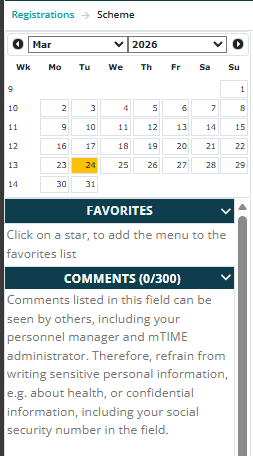
Select period
Your timesheet can be displayed as a day, a week, or a month. It is recommended that you choose a monthly overview.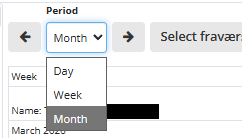
Add more activities to the timesheet (Note: ONLY FOR PROJECT TIME REGISTRATION)
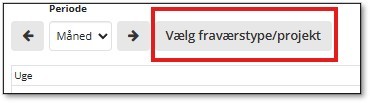
Click on ”Select absence type/project” to add the relevant project(s) to your timesheet
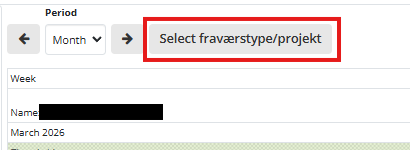
Tick the box for the project(s) that are relevant to you.
Then click on the cross.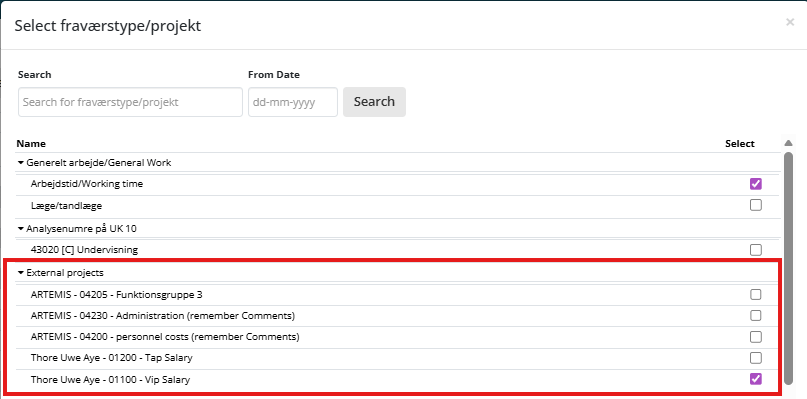
The selected projects will now be displayed in your timesheet.
Total hours
mTIME calculates a total of your hours per day and per month.
Total time spent: calculated based on check-in/check-out times and absence
Daily work norm: your standard time.
Difference: the difference between the total time spent on the day and the standard timeAn unfilled week:

A fully filled week:

Note: Conversion of hours: mTIME calculates in hours/decimals and not hours/minutes.
A standard time of 7.24 hours will therefore be displayed as 7.40 hours.
Pay particular attention to this when registering absences that are less than a day.
Use the converter below if needed.
Frequently Asked Questions
At the moment, there is no APP for time registration, but the provider of mTIME is in the process of developing an APP tailored to SDU.
Part-time sick leave and registration
If you are on part-time sick leave, you must register your actual working hours as well as your absence in mTIME.
Please note that you cannot have a total working time exceeding your daily norm on days where you also have absences (e.g., due to illness).
Course/seminar and registration
When attending conferences, seminars, courses, etc., the scheduled time must be registered as working hours.
Personal time during the event as well as social activities - e.g., dinner, etc. - does not count as working hours.
It is recommended that you indicate, for example, "course" in the comment field.
Doctor / dentist visits
SDU's employment terms state that you can visit the doctor/dentist during working hours. This is done by agreement with your immediate manager.
Dentist/doctor visits are included in the daily working hours, so no special absence code is required.
It is recommended that you indicate doctor/dentist visit in the comment field.
Maximum number of working hours per day
You must always register the actual number of hours you have worked on the given day.
Therefore, you can register more or fewer hours than your daily norm (regardless of whether you register time on projects or not).
However, remember that to comply with the 11-hour rule, you may only work a total of 13 hours per day.
SDU's annual celebration and registration
The day of SDU's annual celebration is a half-holiday for all permanent employees at SDU, as SDU closes at 12:00 on that day.
However, you must still register the actual number of hours you have worked on the given day.
If you take a vacation on this day, it counts as a full vacation day.
Time registration of extended sick leave, maternity/paternity leave, etc.
Maternity/paternity leave and extended sick leave are currently handled in mTIME by registering the relevant absence reason on each individual day. However, a technical solution has been identified that will simplify the process. The solution will first be tested, etc., and it will be communicated once it is ready to be implemented in mTIME.
Absence – issues with automatic transfer to mTIME
Currently, only vacation days and special vacation days are integrated into mTIME from HCM. All other absences must be registered manually in mTIME.
Please note that all absences must also be registered in HCM (and agreed upon with your immediate manager).
Care days and registration
If you have one or more children under the age of 8, you are entitled to 2 care days per year per child.
If you encounter an error in mTIME when trying to register a care day, please contact mTIME-support.
Holiday integration in mTIME
The holiday integration (which ensures the continuous transfer of holiday days, special holiday days, and holiday allowances from HCM) in mTIME looks one year ahead in relation to the ongoing registration of holidays.
Vacation – issues with automatic transfer to mTIME
If you experience that your planned vacation days and special vacation days are not automatically transferred to mTIME, you should first check whether your vacation is correctly registered in HCM.
It is not possible to edit your vacation directly in mTIME, as mTIME synchronizes with HCM every 4 hours, and your changes will therefore be overwritten with the vacation registered in HCM. All vacation days and special vacation days must therefore be changed via HCM.
Feel free to contact your absence administrator regarding changes in HCM.
Check the following if your vacation is missing in mTIME: Does my vacation start or end on a Saturday or Sunday?
- If that is the case with your vacation, you must ask your absence manager to delete your vacation in HCM and create it again, so that the vacation neither starts nor ends on a Saturday or Sunday.
- Wait until the next day and check if the vacation has been correctly transferred to mTIME. If not, please contact mTIME-support.
Is the vacation period non-continuous?
- For example, if all 5 special vacation days are planned in the same reservation, but the period is not continuous.
- In this case, mTIME will allocate special vacation days for the entire period instead of as individual days. The vacation period must therefore be completely deleted, and the days entered individually.
Wait until the next day and check if the special vacation days have been correctly transferred to mTIME. If not, please contact mTIME-support.
Error on approved timesheet
If you notice an error on your timesheet after it has been approved, you can write to mTIME support to have your timesheet reopened.
We can reopen timesheets up to 12 months back in time.
Standard hours not correct
If your daily standard hours in mTIME are not correct, please send an email to our mTIME support with your manager Cc'd.
Our support team will then make the change in mTIME.
It is also important that you notify mTIME support if, for example, you work 4 days a week instead of 5.
The line with working hours is missing
The line will then appear on your timesheet and future timesheets. The change will not apply to past months.
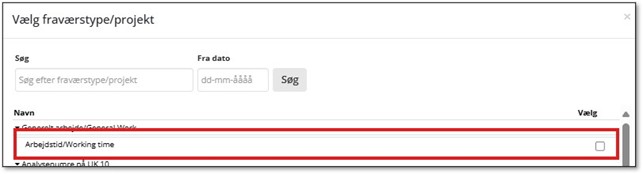
If the line "Working hours" is missing from your timesheet, click on "Select absence type/project" and add the line here (check the box next to the line you wish to add and then click "Close").
Click the button to add the line "Working hours":
Check the box next to the line "Working hours" and then click "Close":
Add more/other absence types
The change will not apply to past months.
The line will then appear on your timesheet and future timesheets.
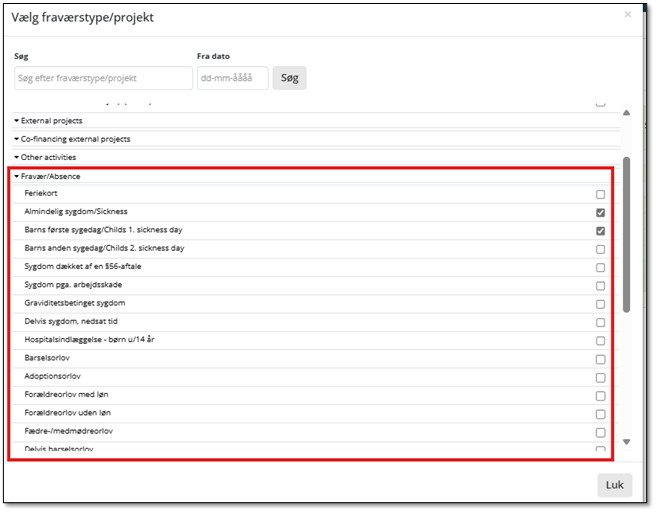
If you are missing a specific absence type on your timesheet, click on "Select absence type/project" and add the desired absence type here (check the box next to the line you wish to add and then click "Close").
Click the button to select more/other absence types:
Check the boxes for the absence types you wish to display on your timesheet:
Change of name/daily norm/unit/personnel manager (p-manager)
If there are changes to your name, daily norm, unit, or p-manager, this must be reported to your local HR (who must then inform SDU HR Employees so that changes can also be made in HCM and mTIME).
Only employees covered by the flex time agreement accumulate flex/saved hours.
Employees not covered by the flex time agreement do not accumulate flex, and the system will not carry over the hours from month to month.
You must always register the actual number of hours you have worked on the given day, whether it is more or less than your daily norm.
If, over a longer period, you have worked more than your daily norm, you can - after agreement with your immediate manager - choose to take a full flex day.
When taking a full flex day, select the absence reason "Flex day off."
In this way, you can also balance your average number of hours.
You can see your total working hours per month on the far right of your timesheet.
- The line "Total time consumption" = Your currently registered hours
- The line "Daily work norm" = Your norm time
- The line "Difference" = The difference between your current hours and your norm time
Your manager will look at an average of your hours over a longer period (typically 4 months), and here your manager will ensure that you do not exceed the 48-hour average per week.
You can also see your daily flex balance on your timesheet in mTIME.
See also our webinars on the transition to mTIME.
Converter
Minutes to decimal hours
Decimal hours to minutes
Weekly hours to daily hours
Practical Information
- Purpose and framework for time registration
- Working hours according to the collective agreement
- SDU's flexitime agreement
- Overview of absence and registration in mTIME
- The law on working time registration
- Administration of time and hour registration (for managers, controllers, and project economists)
News regarding working hours
Support for time and hour registration
Do you need help? Contact your local superuser or visit our support page here.
You are also always welcome to write to us if you have any questions. Write to mtime-support@sdu.dk