MFA – Multifactor Authentication at login to IT solutions and services
SDU uses a multifactor authentication (MFA) for various IT solutions and service pages
When you need access to IT solutions and services, it is quite normal to provide a username and password. To optimise the security of some logins, we have a two-factor authentication which ensures that it is you who is logging in.
You are familiar with NemID/MitID, where in addition to your username and personal password you also need a cardboard card with codes or an app to access various services.
MFA at SDU works so that for different services you will be asked to provide extra confirmation after you have logged in with your SDU login (e.g. when logging in outside SDU’s campus)
You have the option of completing this additional login in three different ways:
1) Use the Microsoft Authenticator app. Recommended as it provides the best experience and you don't have to enter a long code.
2) Receive an SMS with a code
3) Receive a call where you need to confirm the login by pressing #
Setting up the Microsoft Authenticator App
You will find a guide for installing and setting up your MFA app here.
MFA creation via login to Microsoft or SDU service (browser)
-
The first time you sign in to a Microsoft service page or SDU page through your browser, you will be greeted by this message:
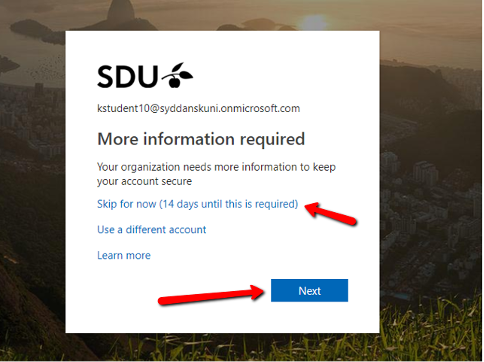
You will be asked if you want to create MFA now or postpone for 14 days – we recommend that you do it immediately
To create MFA, click on ‘next/næste’ and begin the setup procedure
-
-
You can also create you MFA at aka.ms/mfasetup
You may download the instructions in PDF below